
This guide explains how to install and use the optional Law App Desktop Sync Tool for Windows. This tool is designed to streamline document editing by allowing users to open, edit, and save documents—such as Excel files, PDFs, and other supported formats—directly from their desktop using their preferred editing software.
The Sync Tool connects seamlessly with Law App, enabling live editing of cloud-based documents without the need to manually download and re-upload files. It supports a wide range of document types and editing programs, including alternate PDF editors beyond Adobe and various spreadsheet and word processing tools.
Important note for Word documents:
Users editing Word documents must continue to use the pencil icon within Law App to launch the Microsoft Word API integration. This is essential for maintaining document version control and ensuring accurate tracking of edits.
Key points:
- This tool is optional and not required for standard use of Law App.
- It is ideal for users working on desktop environments with editing software already installed.
- If using a personal or non-work computer, users can continue to download, edit, and upload documents manually as usual.
1. Download the desktop Sync Tool
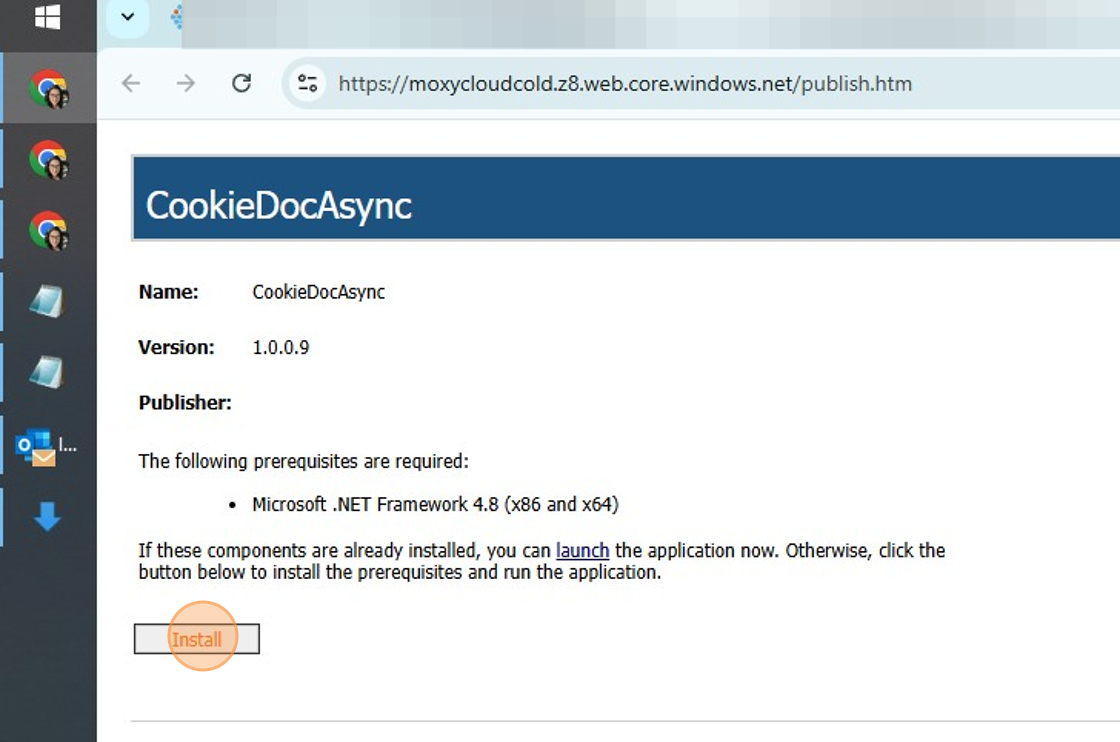
https://moxycloudcold.z8.web.core.windows.net/publish.htm
Click “Install”
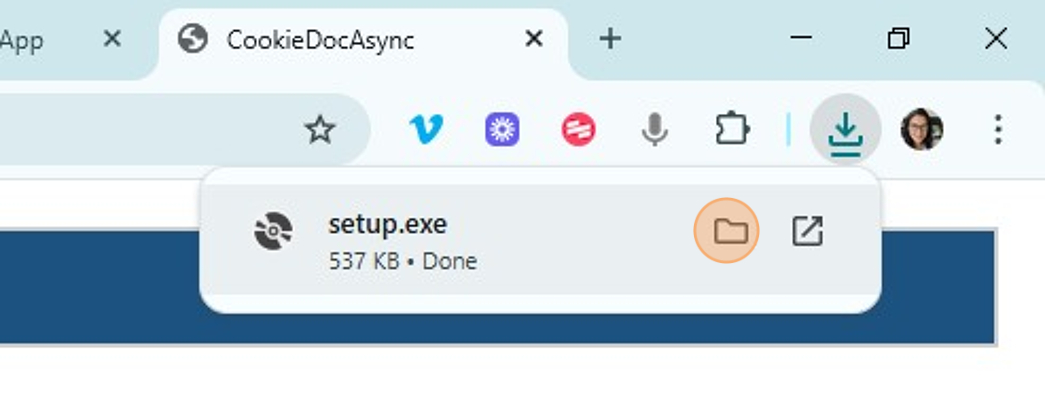
2. Click here
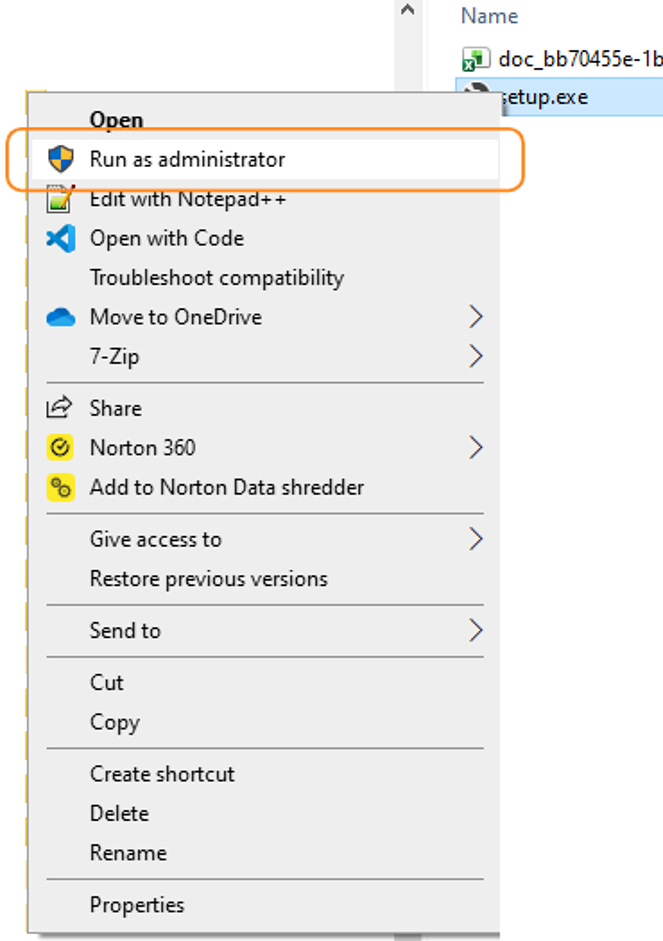
3. Right click on setup.exe and click “Run as administrator“
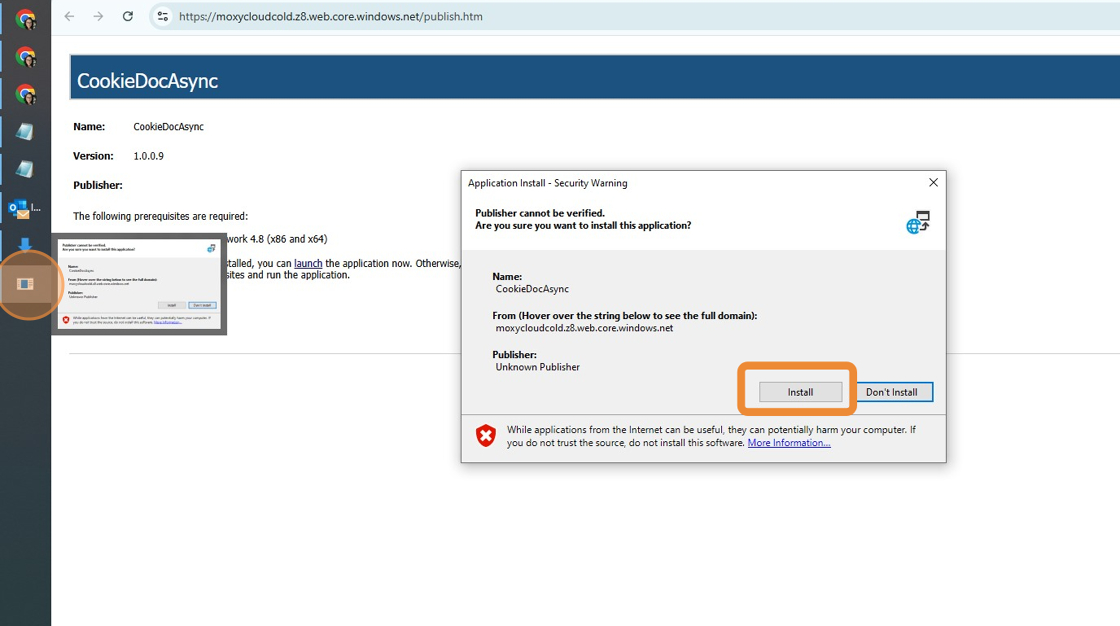
4. Click “Install“
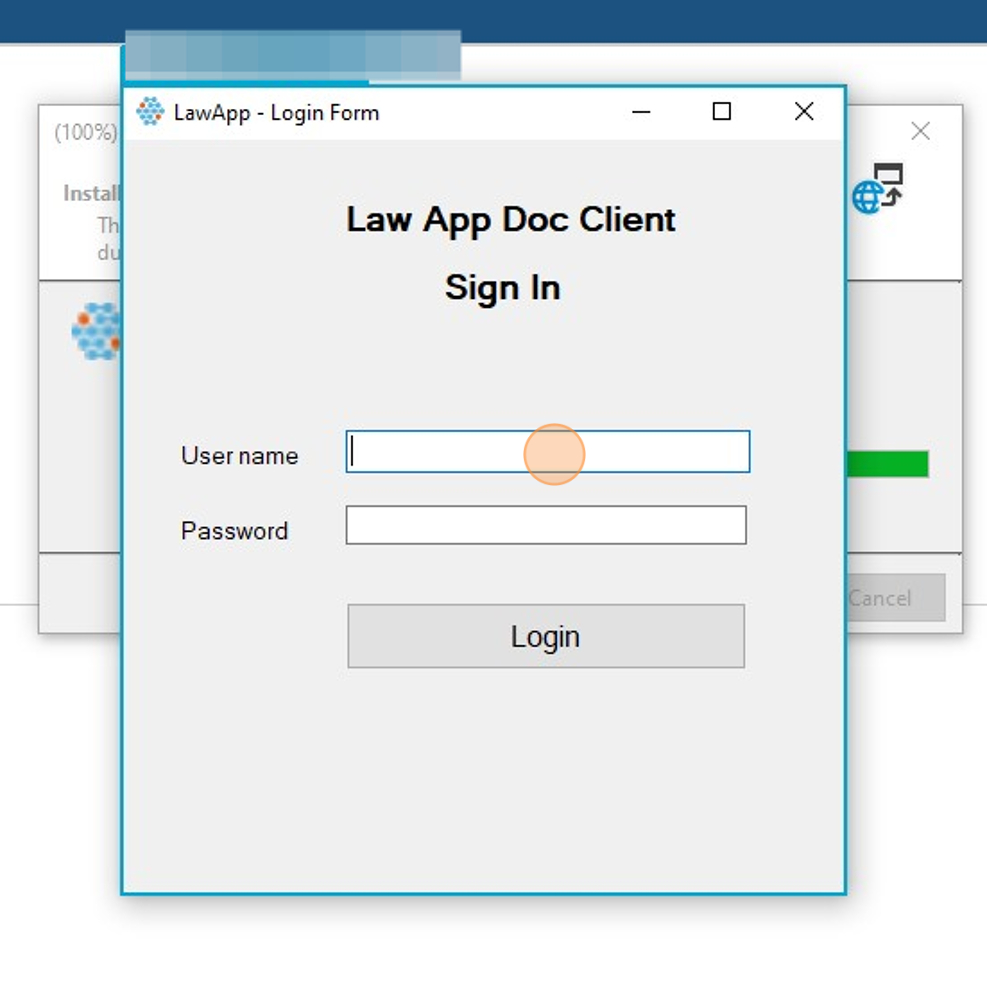
5. insert your Law App Username and Password
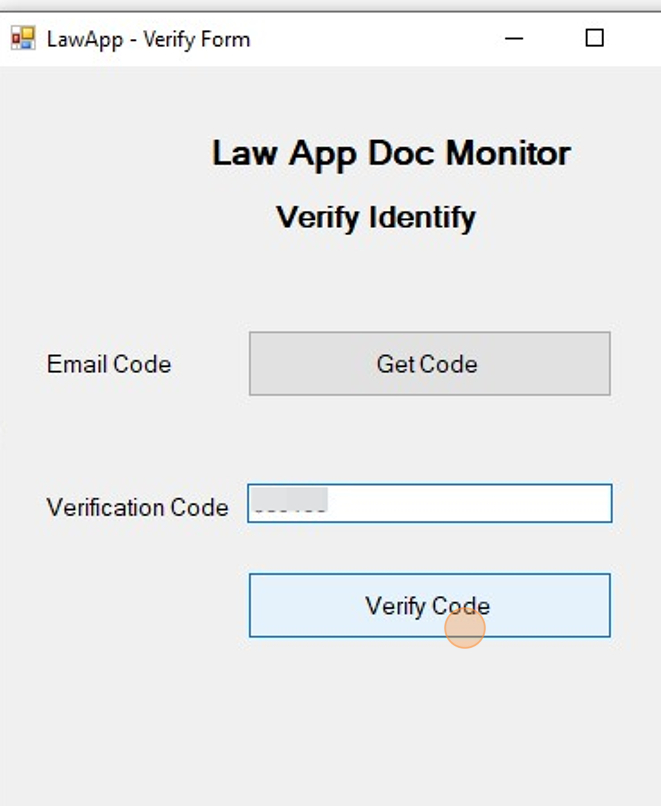
6. Use your Authenticator App to get a verification code
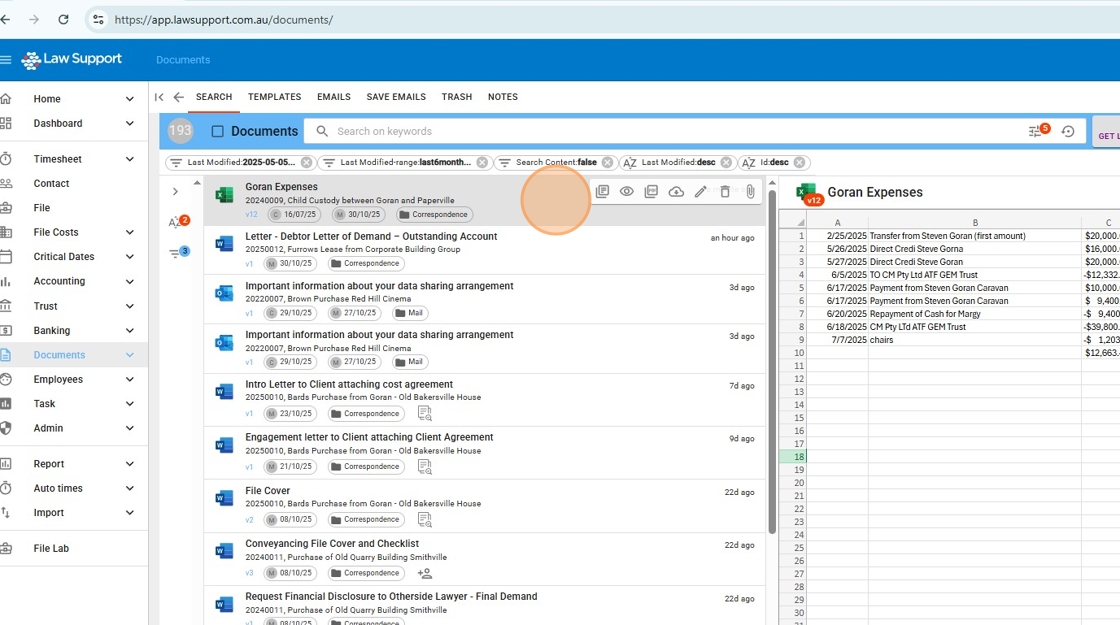
7. Right click on your chosent document
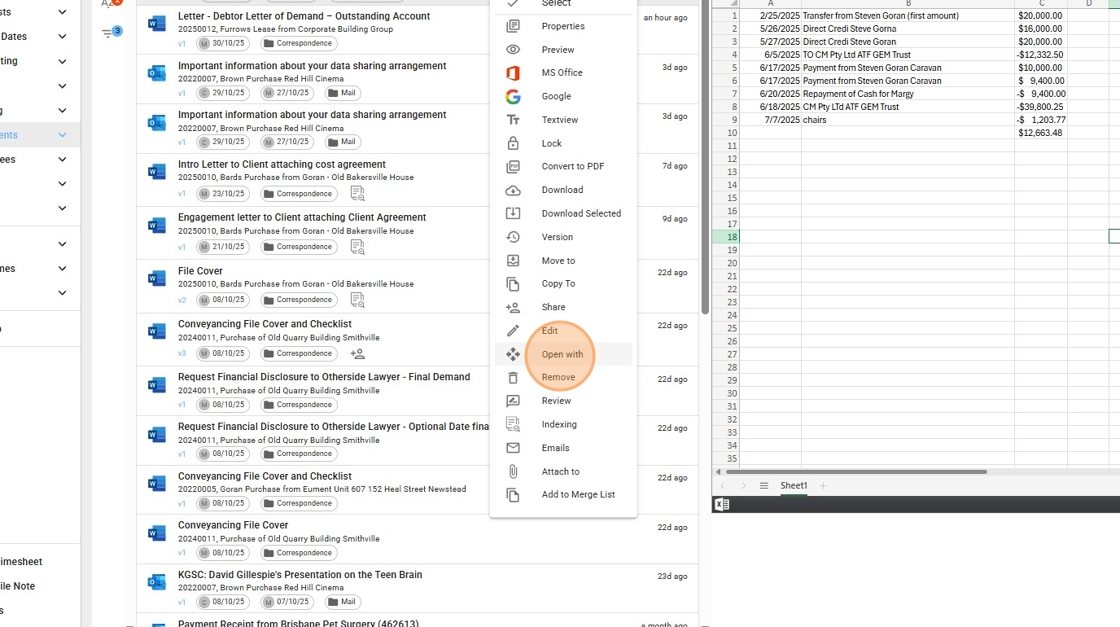
8. Click “Open with” icon for non WORD document.
9. Make any edits and exit and agree to save by pressing Click “Save”
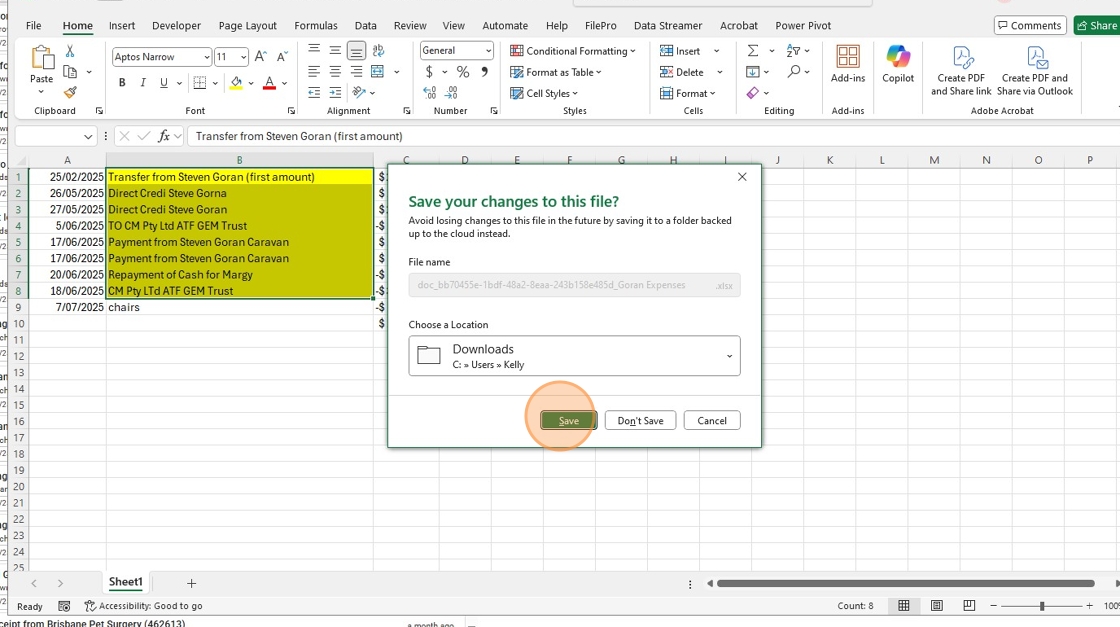
10. Allow at least 5 seconds for your edited documents to close and for the sync to happen
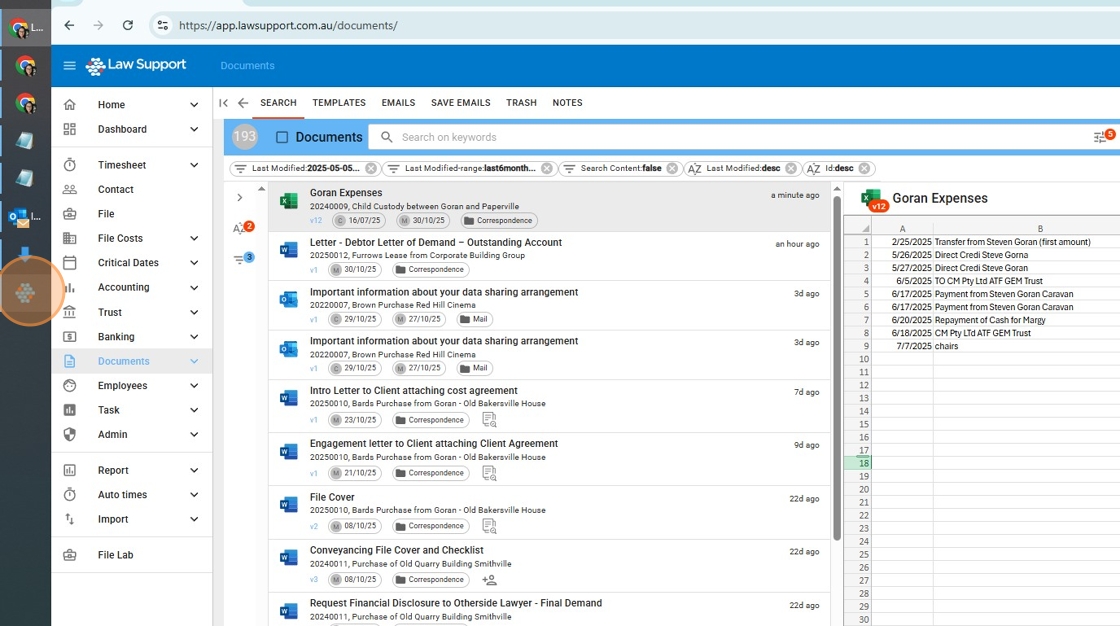
11. If the document has already synced the “Sync Box” will flagged.
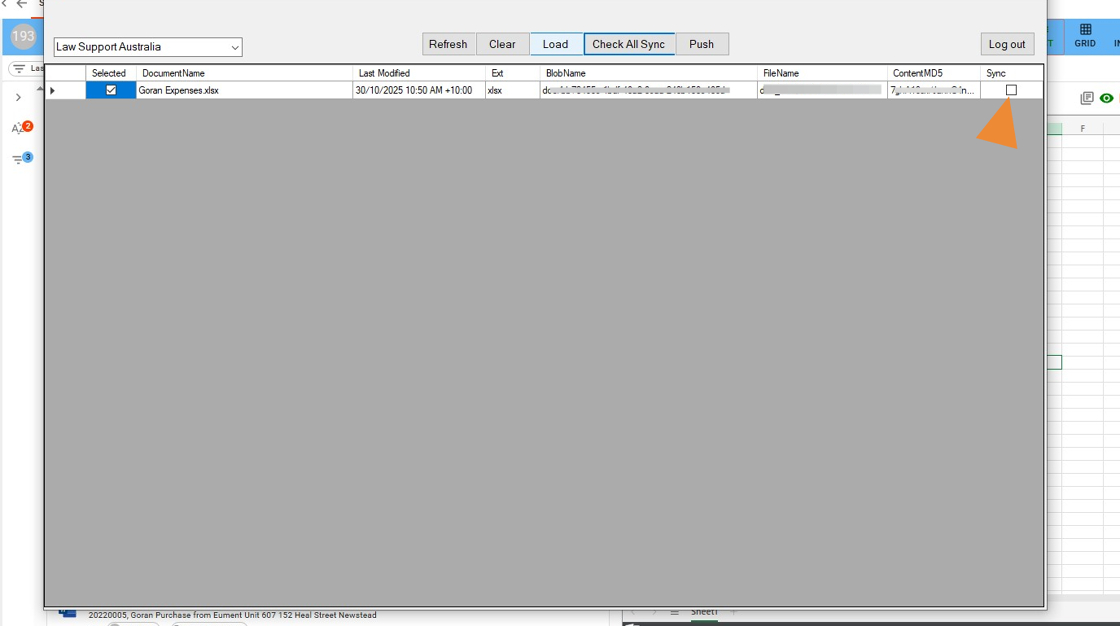
12. Click “Preview” to see latest version.

